The sanctioning process is divided into 2 main forms:
Primary Form: This form is filled out during the registration process. To complete it, you must go through the entire sanctioning process until you submit the application.
Secondary Form: This form becomes available only after the sanctioning process has been submitted and completed. You can access it from your application dashboard. It must be filled out in order for the sanctioning to be approved by your MA.
STEP 1 : Listing information
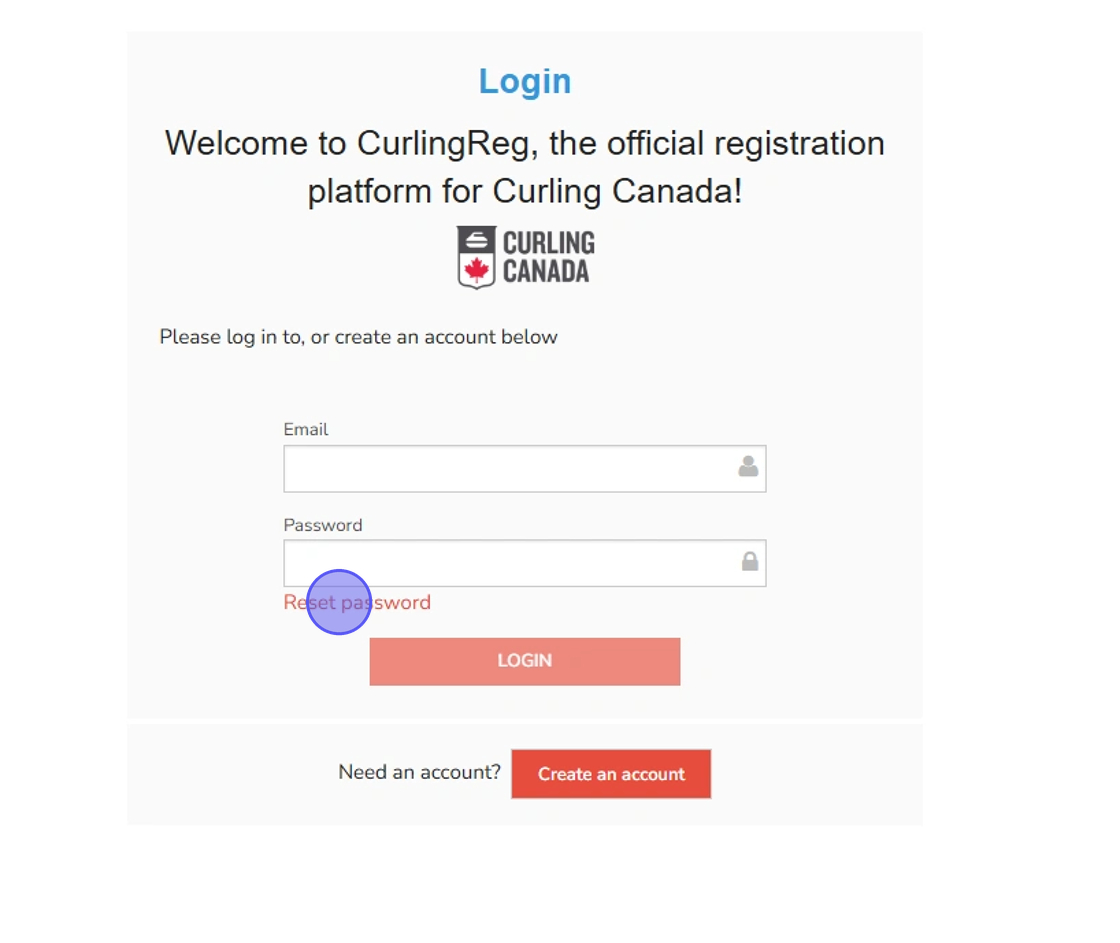
1. Before starting your sanctioning process, log in to CurlingReg.com.
If you already have an account: Log in with your club admin credentials.
If you don't have an account: Please create a new account.
For any assistance accessing your account, please contact us at support@uplifterinc.com

Tip: If you don't have access to your account password, click "Reset Password" and follow the instructions you will receive by email.
2. To start the sanctioning application, access it via the process registration link.
This link will be shared with you by your MA contact.
⚠️Please note that the link changes each season. Make sure you are starting the process with the correct one by checking the date in the description.
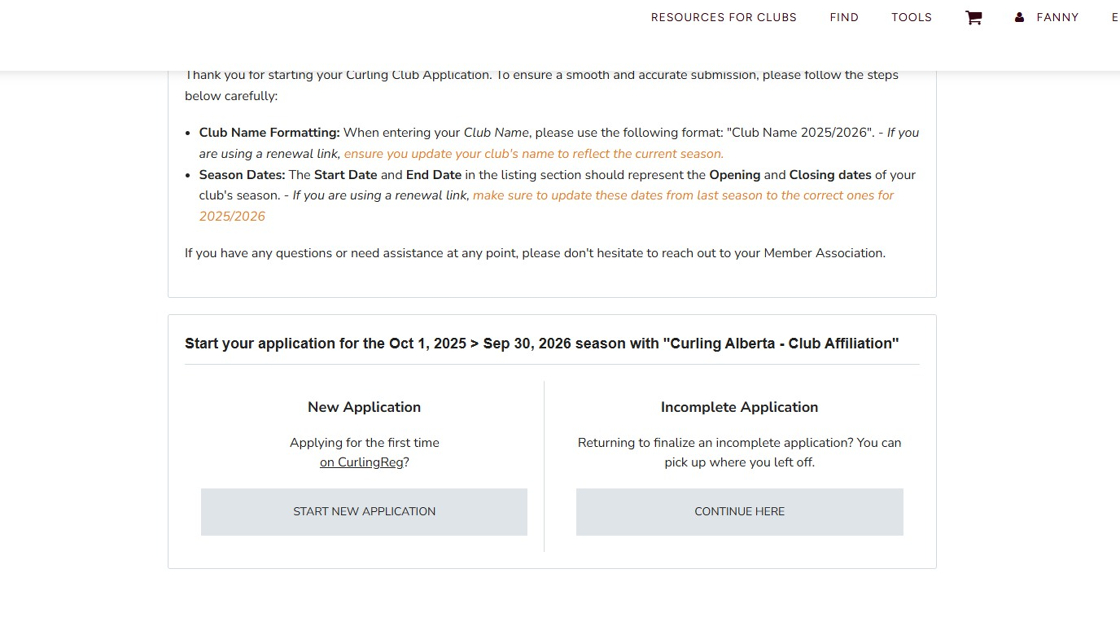
3. To initiate the application, click Start New Application.

Tip: Only the owner/main admin of the organization can start an application process. Please make sure you are logged into the correct account. If the application requires updating the Club Access permissions, please follow this guide:
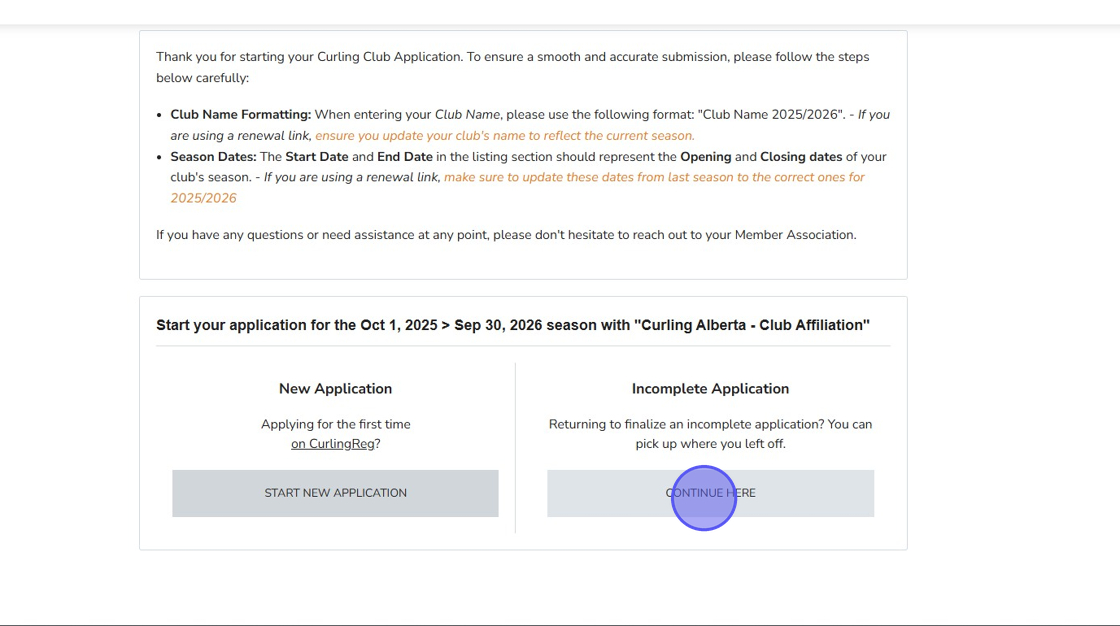
4. If Applicant has already started an application that is still marked as Incomplete, click Continue Here to access and complete your ongoing application.
5. If an existing listing is already available from last year, the applicant may click Copy to duplicate a previous listing.
-
Two options will then be presented:
Copy and create a new listing using the selected details.
Reuse the existing listing without making changes.
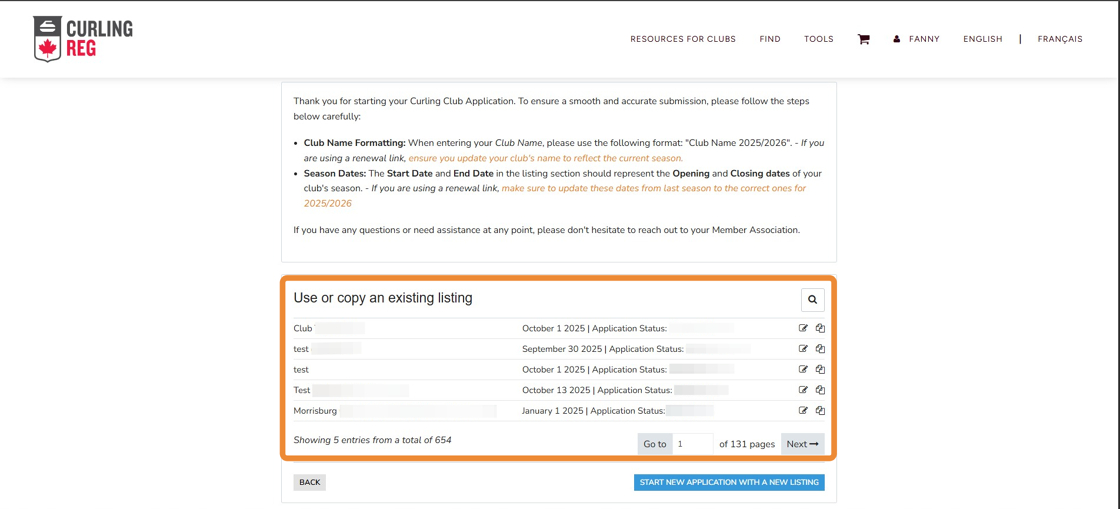
6. If the applicant wishes to reuse a listing from a previous year, it is recommended to click the "Copy" option.

7. If there is no existing listing or the applicant prefers to start fresh, select Start my application with a new listing.
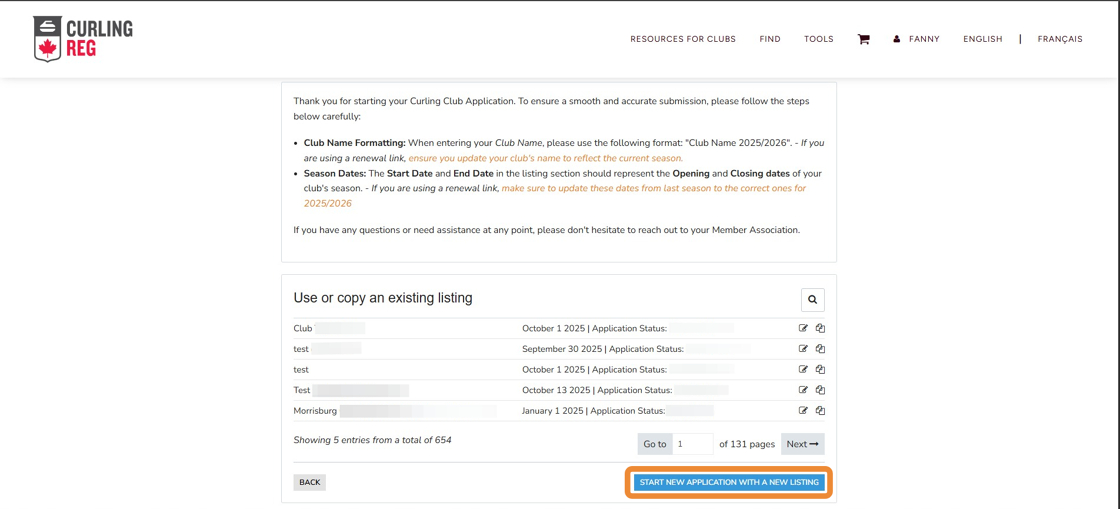
8. Complete the Listing Information
Your listing information includes all the details that end users will see when searching for your club. This information will be publicly visible on club directory pages and to all CurlingReg users.
-
Club Name: Please make sure to enter your club name correctly, including the season year, to easily identify the ongoing season (e.g., "Club Name – 2025/2026").
Starting and End Date: By default, the system selects the entire season. These dates represent the opening and closing dates of your club.
Club Location: In the address field, please enter your club's mailing address.
Applicant must complete all required fields. Once finished, click Save and Continue.

9. Once the listing information is saved, the application must select the categories in which the club will appear on the listing page. The information selected below will be displayed in the club/event directory, helping members and participants find your club or event more easily.
Select the facilities your club offers (you may choose more than one).
Select the number of sheets your club offers.
This won't affect your application. You'll be asked for more information in the next step.

10. Optionally, the applicant may provide the club's social media information if they wish for it to appear on their CurlingReg registration page.

11. Once all listing information has been entered, click Save and Continue.

STEP 2 : Primary Form

1. If the club's physical location differs from the one listed, the applicant should select No and provide the accurate physical location.

2. The applicant must fill out the form. All questions marked with a red asterisk are mandatory.


3. If a required role is not listed, the applicant should select Other and manually enter the appropriate role.
4. Once all required information has been completed, the applicant should save each section before proceeding to the next step.

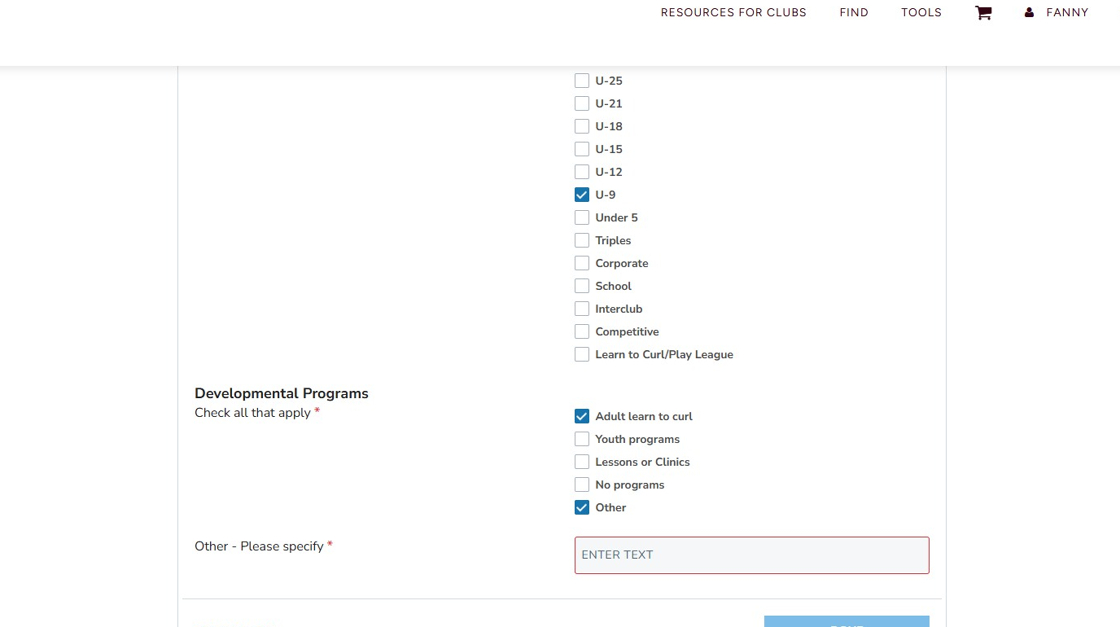
5. The applicant must select all disciplines offered by the club and the developmental programs available.
6. If a developmental program is not listed, the applicant should select Other and enter the program name
7. Click on Done to continue the application

8. Once all information has been entered and saved, the applicant will be able to review the cost summary of the application. Click Proceed to Cart to continue.

9. Final Review and Payment
In the cart, Applicant may:
Review all selected products and fees.
Apply a discount coupon, if applicable.
Applicant have two payment methods :Offline Payment
-
Online Payment
All the instruction on the payment methods are available on the cart.
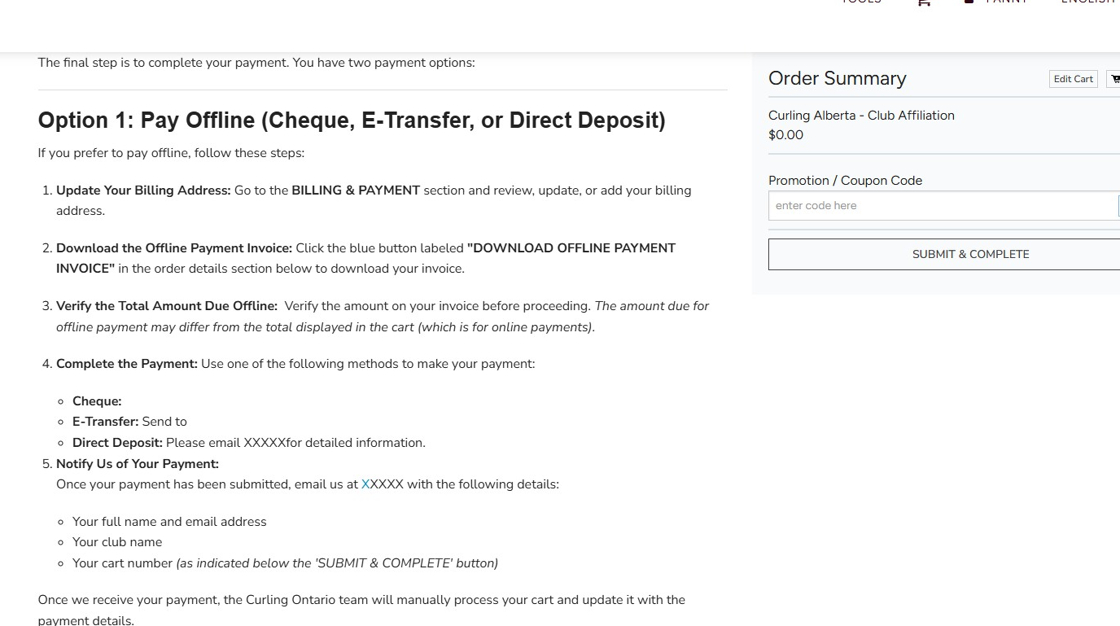
10. Additionally for the payement methods, applicants must check if the billing address differs from the account address, it can be updated by clicking the edit icon.

OFFLINE PAYMENT OPTION:
- Follow the instructions provided in the OFFLINE PAYMENT section.
Leave your cart as it is.
The applicant will receive a confirmation email with the remaining instructions and the receipt of their payment once the MA has submitted the offline payment into their system.
11. ONLINE PAYMENT OPTION :
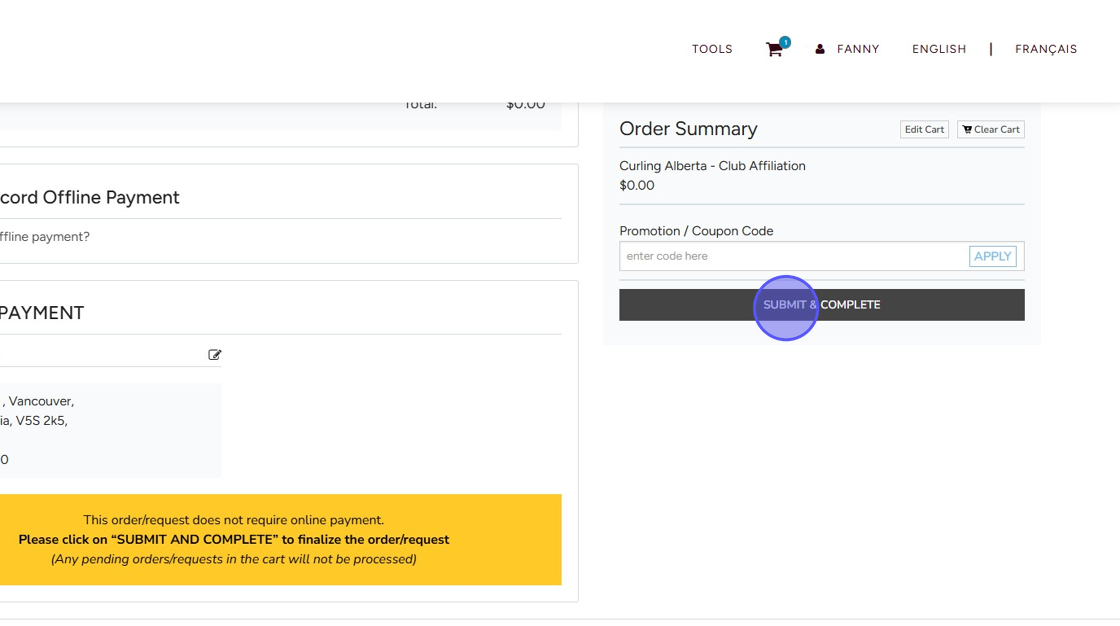
After entering payment details (if applicable), click Submit and Complete to finalize the application.
STEP 3: Secondary Form (Post-Application Submission)
Alert: OFFLINE PAYMENT OPTION: If the applicant has submitted the sanctioning with an offline payment, they must wait for the payment confirmation email from the MA before they can continue and access the Secondary Form.
1. To continue the application, navigate to the Admin Dashboard and select the Applications tab.

2. All affiliation applications are available on this tab, with a preview of their current status. Select the application that was just submitted to proceed.