Once the offline payment is received, go to the Offline Payment tab in the admin dashboard.

Offline payment dashboard overview
1. All payments with "Waiting Payment" are marked as Incomplete. This means the cart is still under the applicant's account and has not been completed yet. Use this status to easily find all incomplete payments.

2. If you want to search for a specific offline payment within a batch, you can find it under this drop-down menu.

3. To create a new batch, click on "Add a New Batch."
Please note: The batch must be open to add offline payments. Once a batch is closed, it cannot be reopened.
Submit an offline payment Process
1. To research an offline payment, you can:
Search using the Cart ID or the name/email of the applicant in the search bar.
Filter by Status.
Filter by Batch Status or Batch ID.
Filter by Cart Date.
Tip: Tip: We recommend always searching for a cart using the Cart ID. It is a unique reference and applies to only one specific cart.
2. Click on the order to which you want to add the offline payment.

3. You can confirm that it is the correct offline payment to submit by clicking on the order link.

4. You can find the Cart ID, the details for each fee, and the total amount to pay on your offline payment invoice.

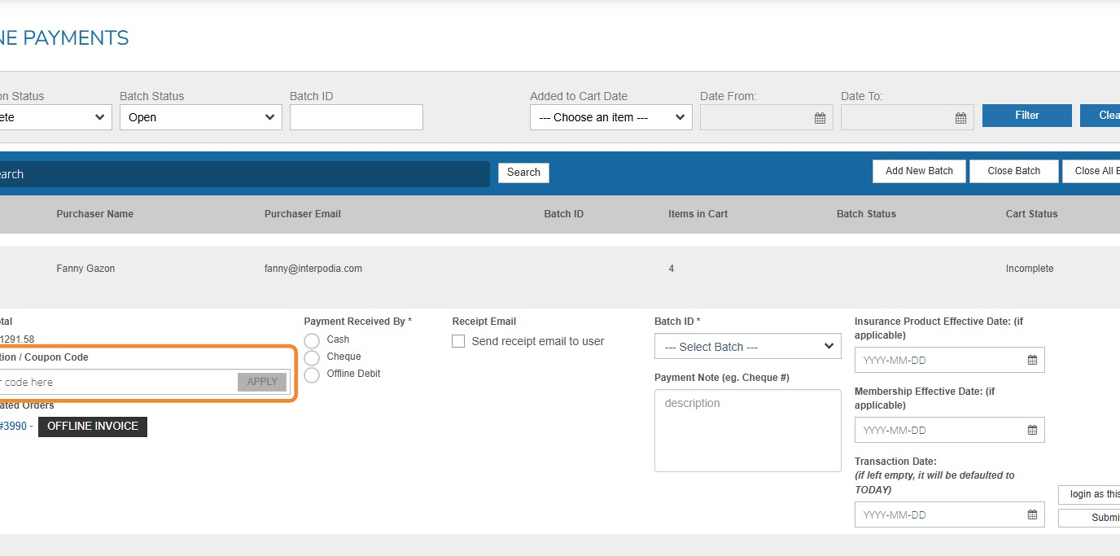
5. During the offline payment submission, you can apply a promotion or coupon code.
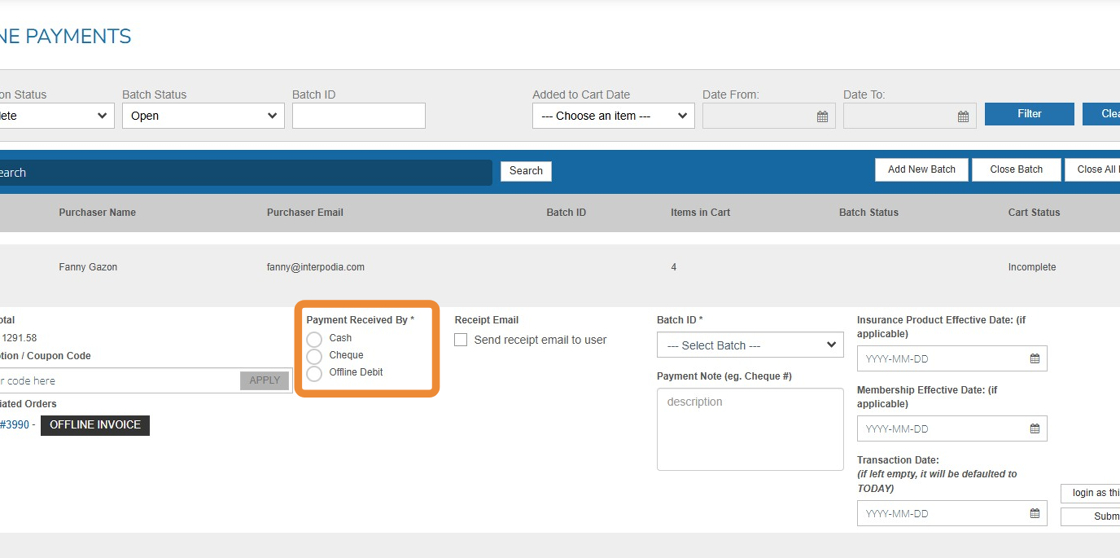
6. Select the payment type: Cash, Cheque, or Offline Debit. (This is a mandatory field.)
7. Select the Batch ID where you want to add the payment. You can also create a new batch at this step without losing the information you have already entered.

8. You can add a payment note to record any information you need to keep or share for your financial management.

9. Please note the transaction date. If left empty, it will default to the submission date in the system.

10. To complete the offline submission, click on "Submit".
Once submitted, the payment cannot be undone. However, you can still change the batch until it is closed.

11. Once submitted, the status of the cart will be updated to "Complete."
The club applicant will receive a confirmation notification and a receipt of their payment.
Please note: The club must continue the sanctioning process by completing the Secondary Form.
