Index
Bambora Is Now Worldline
You may notice some elements in our articles or software still say Bambora. These will be gradually changed but Bambora and Worldline are effectively synonymous terms for all intents and purposes..
Overview
Worldline Pre-Authorized Debit is an add-on available to your club's Worldline merchant account. A Worldline credit card processing account is required before being able to process Pre-Authorized Debit.
Pre-Authorized Debit allows clubs to take payments by allowing the Worldline payment gateway to directly debit your members' bank account when payment is required. This payment method is sometimes referred to with other gateway providers as "Echeck" or "Direct Debit" or may be more familiar as "ACH" (Automated Clearing House in the United States) or "EFT" (Electronic Funds Transfer in Canada) where funds are transferred directly from bank account to bank account through the electronic banking network. This type of payment processing is the same process that is used to automatically process payments to your utilities or to receive your pay cheque via direct deposit.
Additional monthly fees and transaction processing fees will apply to Pre-Authorized Debit. Funds take approximately a week to clear and take longer to determine the payment status of the transaction. Pre-Authorized Debit fees differ from standard credit card transaction fees.
Pre-Authorized Debit is currently a feature available for Beta testing by request.
FAQs
My members have checked out with Pre-Authorized Debit, but their payments still say they are "pending"?
Uplifter will check for all outstanding pending Pre-Authorized Debit payments each evening and group them together in batches to reduce the number of transaction charges a merchant may incur. If the payment time indicated on your payments is from the day before and is still indicated as "Pending" and is not in a state of "requires payment details", contact us at support@uplifterinc.com to determine the cause.
I have Pre-Authorized Debit Payments that still say they are "processing"?
Can I Perform a Refund using Pre-Authorized Debit?
What happens when members enter incorrect banking information?
You'll want to ensure that your members are clear on what information to provide when entering in their banking information. Alternatively, to avoid excessive Item Return Fees, organizations may want to reserve this payment method for administrators only and ensure you have a copy of a void cheque to confirm the banking details entered to process payments.
What does it mean when payments decline with a message "OVER BATCH LIMIT" or "OVER LINE LIMIT"?
Where Can My Members Find Their ACH/EFT Information?
Users looking to pay by ACH/EFT can find their required information either on a cheque, or within their bank's website. An example of where the information may be can be seen here. Though please note that each cheque/bank may have differences. Please be sure to verify the correct information is being supplied before submitting an EFT payment.
Connecting with Worldline
To apply for the Pre-Authorized Debit service to be added to your Worldline account, you'll want to contact our dedicated representative, Sheila Barton.
Connect with Sheila
Minimum Requirements & Considerations
To sign up for Pre-Authorized Debit, you'll need to ensure you agree to the Worldline Terms and Conditions of this payment type. Additionally, in Canada, you'll want to ensure that your organization has setup a Customer Pre-Authorized Debit agreement. This agreement needs to either be signed by your customers or digitally accepted and follow the rules of the Canada Payment Association. Ensure that your agreement and your processes will follow the guidelines provided for Pre-Authorized Debit.
Alternative to signed agreements, Uplifter has tools available for members to agree to digital policies that can be added to specific payment methods. If your club opts to use digital policies, please ensure that your club and administrators understand the risks and responsibilities associated with taking payment via Pre-Authorized Debit. You can create your policies in your Uplifter site under Settings > Policies. Learn more about Uplifter's Digital Policy feature in our Policies Learning Centre Article.
When you are completing your application for your Worldline Pre-Authorized Debit account, take note of the fields in the application form for "Maximum batch amount" and "Average batch amount". Worldline automates the processing of Pre-Authorized Debit payments in batches of payments. Uplifter will group your payments daily into batches to be submitted for processing to Worldline. Identify a Maximum Batch Amount that approximates the greatest amount you anticipate processing in a single day. Your Average batch amount will likely be lower if you plan on allowing Pre-Authorized debit to be used as part of your checkout process or to process other payments outside of regular monthly recurring fees. These values will be used by Worldline to assign your account the maximum amount you will be allowed to process in a given batch.
Additionally, Worldline will also ask you to indicate your "Average transaction amount" and your "Max individual transaction". When you identify your Max individual transaction amount, ensure to indicate the maximum amount you plan on processing for any given member account on a single day. Be sure to consider if you have families that might process fees for multiple siblings all at once from a single bank account.
Submit Your Worldline Application
Once you have submitted your application to Worldline, feel free to reach out to Sheila for status updates and next steps. If your current Worldline merchant account is already set to live and is processing credit card transactions, once enabled, your Pre-Authorized Debit services will also be live and ready to process live transactions. If you are still testing your Worldline merchant account for credit cards, you will be able to begin processing pre-authorized debit once your Worldline account has been set to live.
For more information on creating your Worldline administration account and setting your account to live, please review our Worldline Learning Centre Article.
Testing Mode
If your Worldline account is not yet live and processing, you will be able to test Pre-Authorized debit to see how the transactions will appear in your Worldline account as part of the batch processing process. If your account is already live and you wish to test the process, you will need to use live bank account details to see the transaction flow for testing purposes.
Configuring Your Worldline Account
Configuring your Worldline account as an Uplifter Pre-Authorized Debit payment method is very similar to configuring your credit card payment methods. To begin configuring this payment method within Uplifter please navigate to Settings > Uplifter Settings > Merchant Details (Ensure you possess the Manage Merchant Credentials permission, in Settings > Permissions, to be able to access this page). Scroll to the bottom of the page to find the Payment Methods section. Click on Add Payment Method. In the dropdown in the newly created payment method, select Pre-Authorized Debit.

To connect your Worldline account to your Uplifter account, you will want to fill out the fields within the form.
Standard Fields
Public Payment Method? Set whether or not this payment option is public. As you are first connecting your Worldline account, we suggest unchecking this option. This is especially true if you are connecting your Worldline account with an active registration season.
Checkout Text: Button text displayed in the checkout for this payment method
Dropdown Text: Button text displayed for this payment method in public dropdowns listing payment methods (eg, the Member account's page)
Reporting Name: How payment methods appear in reports details and at the bottom of invoices or payment receipts
Advance Notification Days? Number of days in advance to send a payment reminder notification to members. No notifications will be sent if set to 0. Customize your notification message under Settings > Global Settings > Notifications Tab.
Batch Line Limit:This field will be automatically filled in once you supply your other details. The maximum amount that Uplifter will allow to be processed on a single transaction line sent to Worldline. This value should match the Worldline Line Item Limit that has been approved for you account. Setting this limit above your approved Worldline Line Limit will cause submitted transactions to fail. Typically, this value is initialized with Worldline as the same amount as your Batch Processing Limit above.
Batch Processing Limit:This field will be automatically filled in once you supply your other details. The maximum amount that Uplifter will group into a batch of payments sent to Worldline. This value should match the Worldline Batch Limit that has been approved for your account. Setting this limit above your approved Worldline Batch Limit amount will cause batches to fail. Uplifter will generate batches daily when processing outstanding payments and will ensure no batch exceeds the limit identified in this field. If required, Uplifter will generate multiple batches per day to ensure all possible payments are processed when they are outstanding. This limit will be provided to you when your Worldline Pre-Authorized Debit account has been been approved.
Allow payment details to be saved to account: Select this if you would like members to be able to save a reference to the stored Worldline payment profile associated with their entered bank account to be re-used on later occasions.
Group Transaction Processing: Select this if you would like to have multiple transactions that are to be processed to the same bank account grouped together into a single payment. This option will reduce the transactions charges that are incurred; however, depending on the method that your administrators reconcile payments, there maybe additional reports required to track revenue.
Note: Worldline charges a transaction fee for each time any bank account is debited or credited with respect to Pre-Authorized Payments. Each payment made by a member will incur a transaction fee when the funds are debited from their account and then an additional transaction fee when each batch is credited to your club account.
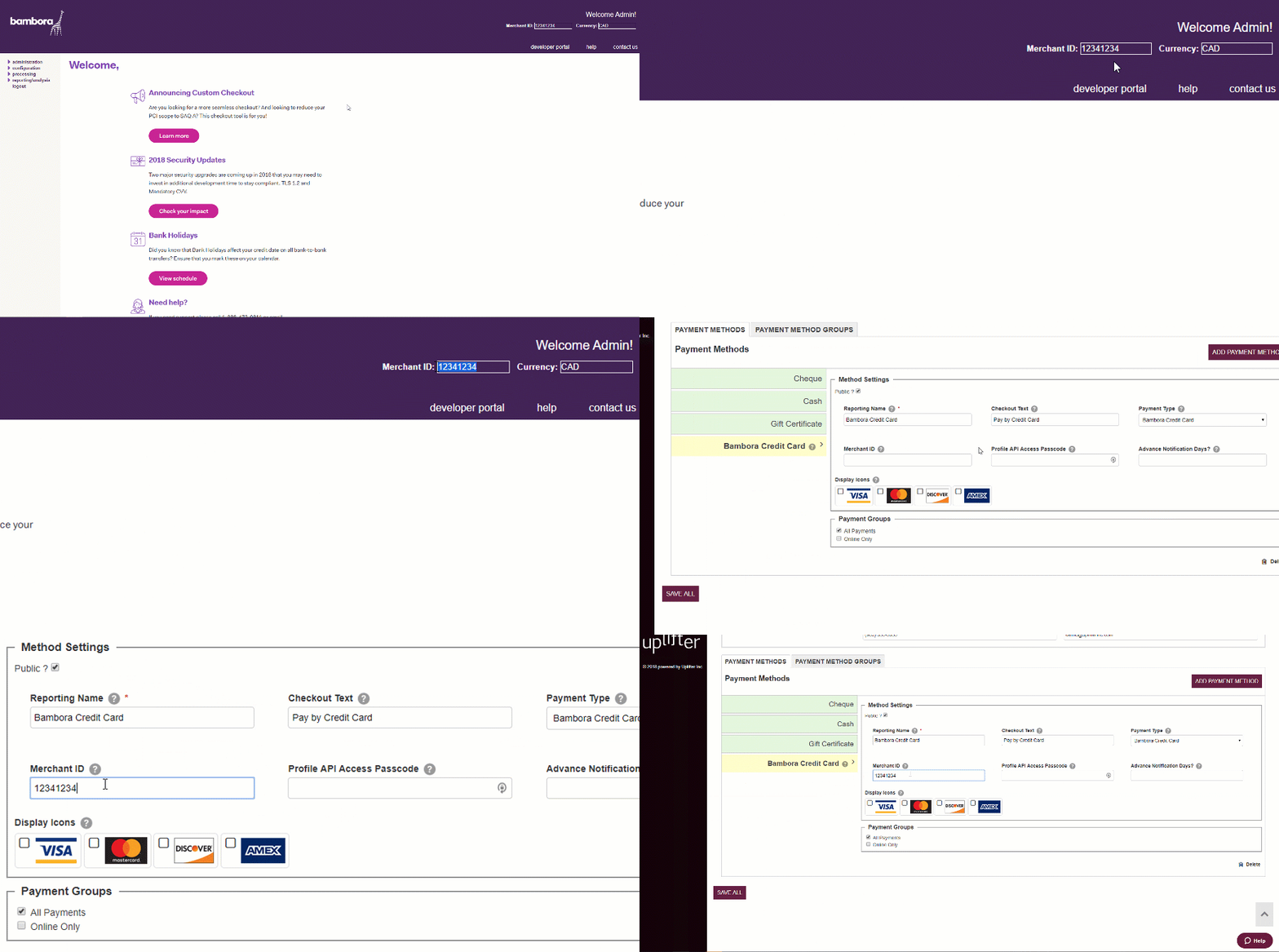
Merchant ID
- Log into your Worldline account
- Copy your Merchant ID (top right)
- Paste the value into your Merchant ID field
Profile API Access Passcode
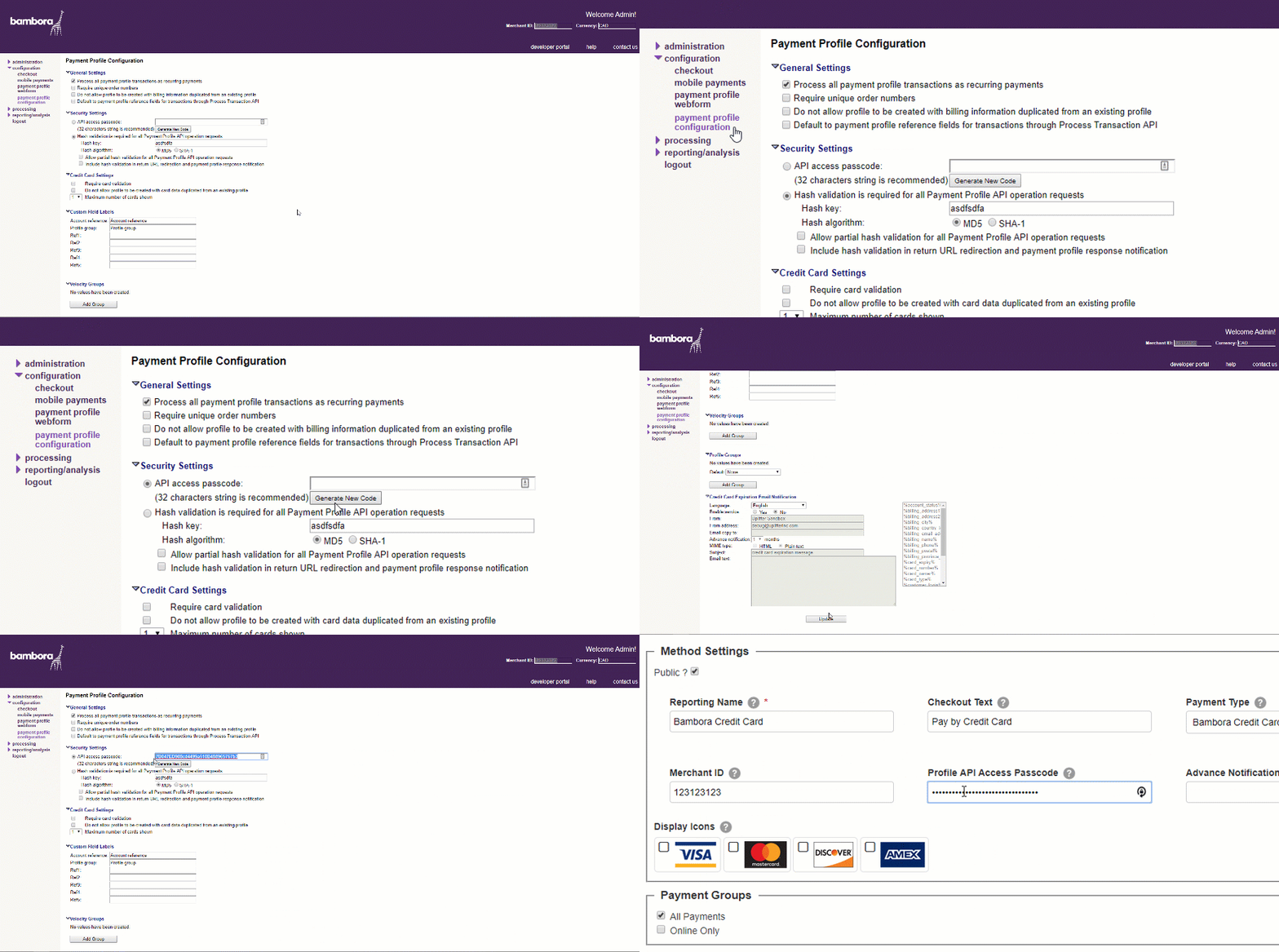
- Navigate to Configuration > Payment Profile Configuration
- Complete this step ONLY if there is not yet a value under API Access Passcode:
- Select the API Access Passcode radio button
- Select the Generate New Code button
- Select Update
- Copy the value from the API Access Passcode field from Worldline
- Paste the value into your Profile API Access Passcode in Uplifter
Once you've completed filling in the form be sure to select Save All at the bottom of your Uplifter page! Learn more about payment methods and payment method groups in our article Payment Methods.
Help! My Worldline Account Has Been Locked Out!
Testing Your Worldline Account
Once your Worldline account has been successfully connected to your Uplifter site you will be ready to begin testing. If your Worldline account is not yet live, you can use any combination of account numbers that meet the minimum / maximum character accounts for each field. If your Worldline account is live, you will want to use actual bank account numbers so that you do not incur return fees trying to process against invalid bank account numbers.
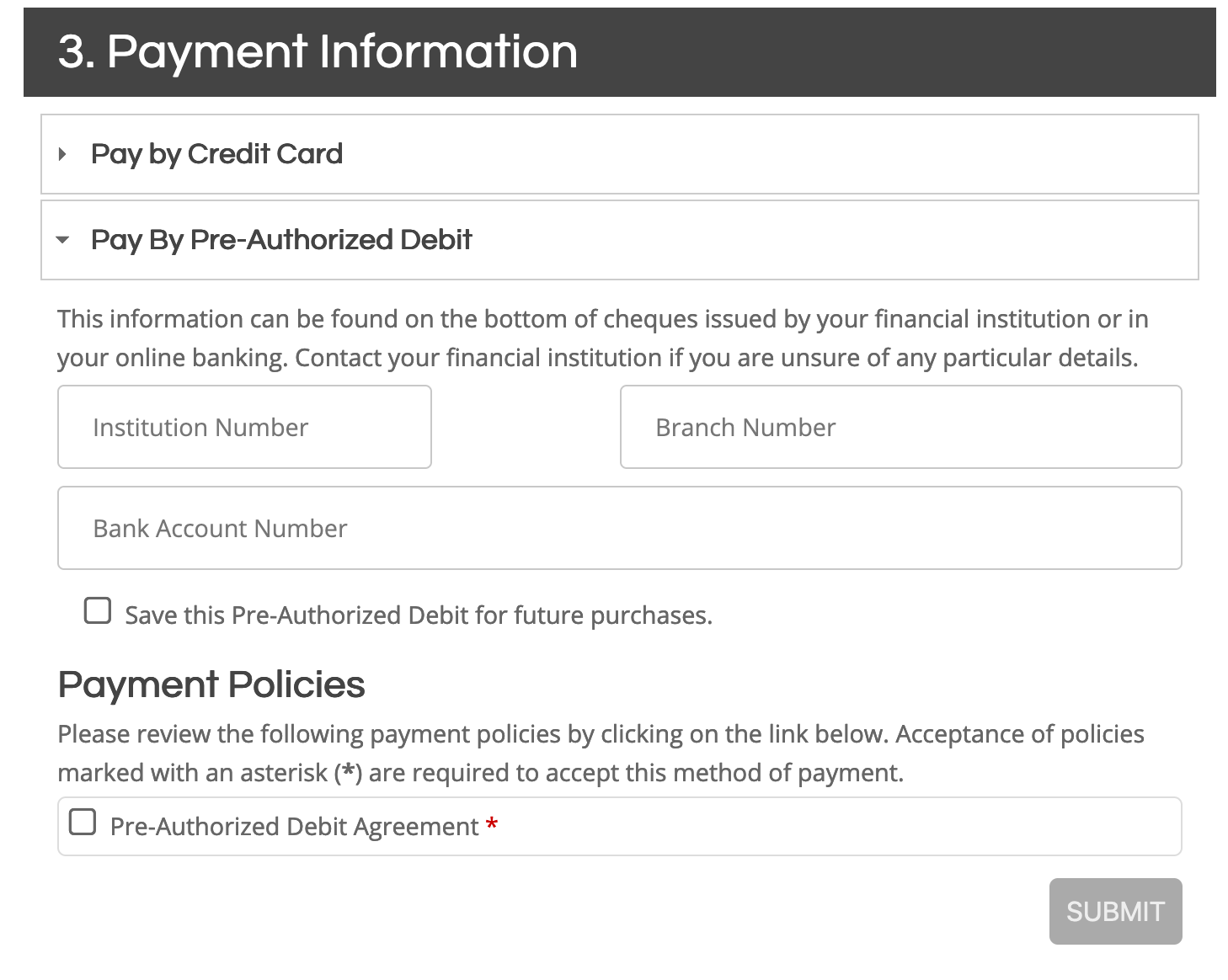
For Canadian EFT accounts, the payment detail fields to enter include your institution number, your branch or transit number and your bank account number.
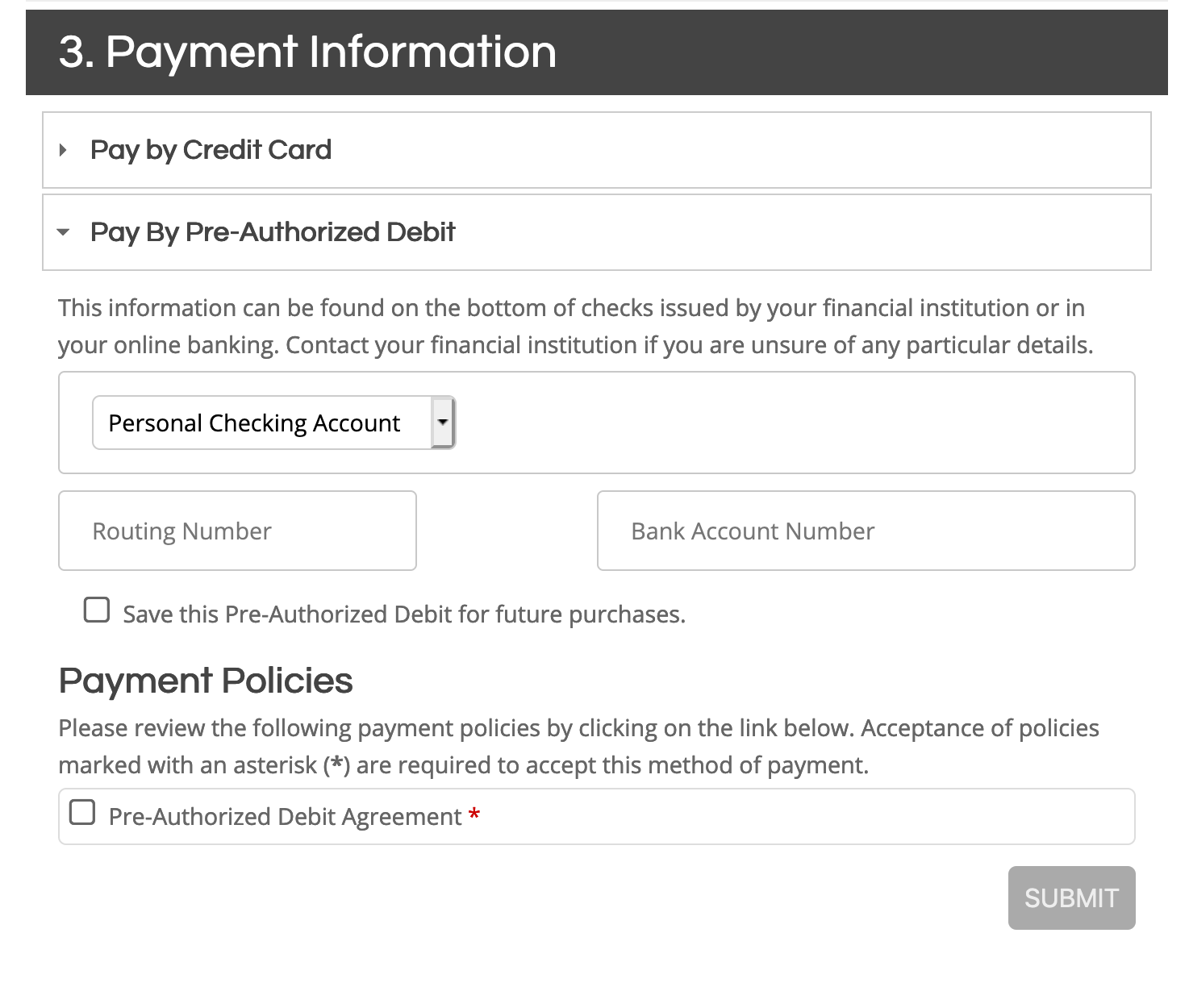
For US ACH accounts, the payment detail fields to enter include a dropdown for the type of bank account, the routing number and the bank account number:
Testing Notes
- During test mode, none of your test Pre-Authorized Debit transactions will be sent to a debiting bank for processing, nor will they settle into your bank account.
- If you would like to observe the flow of a transaction in detail, simply register for a program or purchase a product as a club member and process a Pre-Authorized Debit payment. The following day, log into your Worldline account and navigate to Processing > Batch Processing to see how the completed transactions appear in your batch processing files (NOTE: Future / pending installment transactions will not appear in your Worldline account). With each batch you will see a debit date (the date the amounts will be requested from your members' bank account for debit) and a credit date (the date you can expect the funds to be deposited to your bank account). Once the transactions are sent to Worldline for batch processing, the payments will appear as "Processing" in your Uplifter site. Processing transactions cannot be acted upon within Uplifter and will still be considered amounts that are outstanding for your members.
- Worldline does not allow the same bank account information to be processed multiple times in a single batch. If you have multiple payments that are to be processed against the same bank account within a single day and you have not selected Group Transaction Processing in your configuration, each transaction will be separated into a separate batch to meet Worldline's processing requirements. Similarly, if have selected Group Transaction Processing in your configuration and the transaction total exceeds your batch line limit, Uplifter will split the amounts into multiple transactions and multiple batches to meet Worldline's requirements.
- If your Worldline account is live, the funds will credit to your bank account on the credit date. Uplifter will check Worldline daily for any transactions that have been marked as complete. If the funds transfer was successful, they will be marked as Paid within Uplifter. If the transaction was unsuccessful, they will be marked as Declined within Uplifter.
- Declines can take up to 5 days to appear within Uplifter while successful transactions take approximately a week depending on bank holidays.
Setting Your Account to Live
If your Worldline account is not yet live, you'll want to ensure that you've completed your testing on your credit card transactions prior to setting your entire Worldline account to live. Once you've completed your testing and purged your test data you are ready to go live! Please send a ‘go live request’ to Worldline's Boarding & Activations team (applications.na@worldline.com) to set your Worldline system to live status. Please be sure to note your Worldline account number with your request to go live.
Please allow 24 hours (or 1 business day) for the Worldline account to be set to live. Please let Sheila Barton (sheila.barton@worldline.com | 1 250-483-1291) know if you need this request expedited.
Once your account is live you will not longer be able to use the testing card numbers noted in the above section of this article. Please see Going Live for more information on purging and going live.