Index
Overview
The Auto-Withdrawal feature gives your admins the tools to quickly address withdrawals by not only removing the participant from their registered program, but also performing adjustments and processing refunds where and when desired. By default, these withdrawal options will be available only on the invoice edit page. However, they can be set to be accessible in further locations.
In order to access the Auto-Withdrawal feature you will need the following permissions: Edit Invoices. Please note that Self-Serve Withdrawals, if enabled, do not require any permissions.
Gift Certificate Requirement
Please note that in order to utilize auto-withdrawals your organization must have a viable Gift Certificate payment method. This can be established via Settings > Uplifter Settings > Merchant Details. Please see our Payment Methods article for more information.
FAQs
Does My Invoice Recalculate During The Auto-Withdrawal Process?
Does Withdrawing My Participant Withdraw Them From Their Subscriptions?
Are All Discounts Considered During The Auto-Withdrawal Process?
Webinar
Quick Withdrawing
- Navigate to the invoice edit page where the registration took place
- Click Withdraw From This Program

- Select the desired Withdraw Mode
- Click OK
Learn More

Quick withdrawal options are available on the invoice edit page where the original registration took place. Find the program listing and select the Withdraw From This Program icon to open the quick withdraw pop-up. Select the withdrawal mode you would like to apply and click OK. The system will automatically withdraw the participant and apply the selected formula.
The quick withdrawal option is always available on the invoice edit page. This can then be used to override any default set (see Auto-Withdrawal Settings).
Withdrawal Modes
Each Withdrawal Mode will utilize a different formula for determining any applicable refund from the withdrawal process. It will be important for your team (and your end users) to select the correct mode based on your desired outcome and club policies. The following modes use placeholders to indicate values in their formulas. These placeholders and values are:
- O: The original program price before any discounts
- W: The withdrawal value, a prorated price based on the number of remaining events.
- D: The discounted value, or net fee, that has been applied to the program thus far.
No Adjustment/Manual Adjustment
This mode will withdraw the participant from the program, then apply no adjustments to the cost thereof. Admins can then apply manual adjustments to the program if desired. Since this mode does not invoke any adjustments, any Refund Method selected will rendered moot.
Formula: N/A
Full Cost Adjustment
This mode will withdraw the participant from the program, then apply a 100% adjustment based on the program's cost on the invoice. If an imbalance is generated the selected Refund Method will be utilized.
Formula: D
No Discounts Applied
This mode will withdraw the participant from the program, then apply an adjustment based on the current prorated value of the program. Please note that this does require proration to be enabled on the program involved. If proration is not enabled then the full value of the program will be used and this adjustment will be synonymous with the Full Cost Adjustment. This mode does not consider any other discounts or adjustments that may have been applied to the program. This mode will never reduce your program to lower than $0.
Formula: W
Discounted Amount Applied
This mode will withdraw the participant from the program, then apply an adjustment based on the current prorated value of the program, minus any previous adjustments applied. This essentially reverses any discounts the user may have received on the program. Please note that this does require proration to be enabled on the program involved. If proration is not enabled then the full value of the program will be used and this adjustment will be synonymous with the Full Cost Adjustment. This mode may reduce your program cost to lower than $0 in some circumstances.
Formula: W - (O - D)
Proportional Adjustment
This mode will withdraw the participant from the program, then apply an adjustment based on the current prorated value of the program, minus a value that is proportional to any discounts previously received. Please note that this does require proration to be enabled on the program involved. If proration is not enabled then the full value of the program will be used and this adjustment will be synonymous with the Full Cost Adjustment. This mode may reduce your program cost to lower than $0 in some circumstances.
Formula: W * (D / O)
Auto-Withdrawal Not Permitted
Example
In our example we have a $100 program that has 10 events. This means that each event in the program is worth $10 individually. At the time of registration our participant received $10 off, meaning the end user only paid $90 for the program. Having attended several events within the program there are now only 3 events remaining. The participant would like to withdraw.
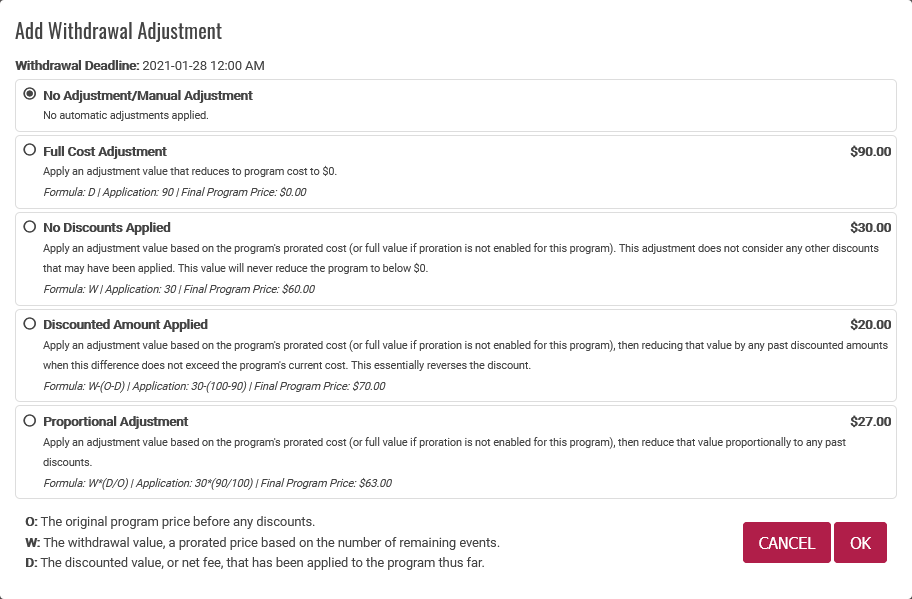
No Adjustment/Manual Adjustment: No formula or adjustment would be applied with this selection. Thus, the cost of the program would remain $90 and no refund would be issued. Manual changes could be applied if desired.
Full Cost Adjustment: A formula of D is applied (D -> 90). This means a program that cost $90 is reduced by $90 to result in a $0 cost. This means a refund will be issued for $90.
No Discounts Applied: A formula of W is applied (W -> 30). This means the prorated cost of the program is calculated based on the remaining number of events (3 events at $10 per event in our example). The cost of the program is then reduced by this value resulting in a $60 cost. This means a refund will be issued for $30.
Discounted Amount Applied: A formula of W - (O - D) is applied (W - (O - D) -> 30 - (100 - 90)). This means the prorated cost of the program is calculated based on the remaining number of events (3 events at $10 per event in our example). This value is then reduced by any adjustments this program has previously received ($10 in this instance). The cost of the program is then reduced by this value resulting in a $70 cost. This means a refund will be issued for $20.
Proportional Adjustment: A formula of W * (D / O) is applied (W * (D / O) -> 30 - (90 / 100)). This means the prorated cost of the program is calculated based on the remaining number of events (3 events at $10 per event in our example). This value is then multiplied by the percentage results of any past adjustments divided by the full program cost. The cost of the program is then reduced by this value resulting in a $63 cost. This means a refund will be issued for $27.
Another way of looking at this mode is the system determines the percentage of the full program that was already paid. In our example, the user paid $90 for a $100 program due to a discount. This means they paid 90% (90/100) of the original cost. The system then determines the prorated value of the program ($30) and multiplies this by the same percentage rate (30 * 90% = 27).
Automatic Withdrawal Settings
- Navigate to Settings > Uplifter Settings > Site Options
- Select your desired 'Default Withdrawal Mode' in the Automatic Withdrawal Settings section
- Click Save All
Learn More
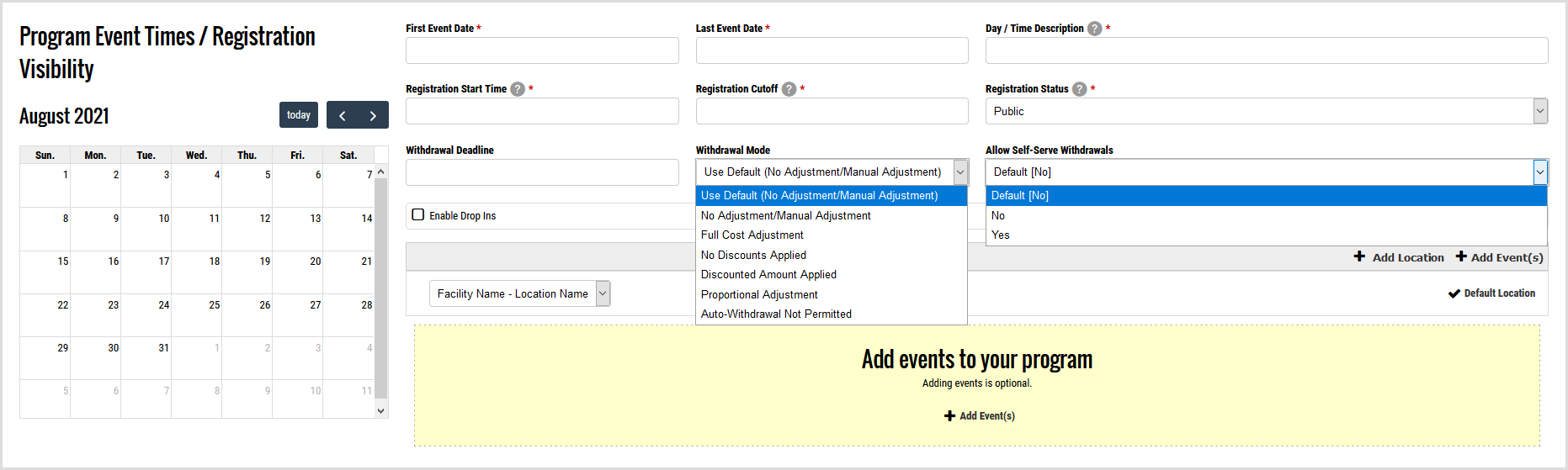
Your Auto-Withdrawal feature can be enabled via Settings > Uplifter Settings > Site Options by selecting your desired withdrawal mode from the 'Default Withdrawal Mode' drop down. Click Save All to keep any changes. Note that you can override the 'Default Withdrawal Mode' by specifying a different mode in the program create/edit form.

Default Withdrawal Mode: A drop down to select your desired default withdrawal mode. Please see the Withdrawal Modes section above for more information on each option. By setting a default method, admins need only click Withdraw to have the default formula applied to the program in question.
Default Refund Method (Always Create Gift Certificate): When a withdrawal occurs and an imbalance (owing amount) is generated, this setting ensures the system will create a gift certificate to account for that balance. Imbalances will only be generated after the system has fully reduced any pending payments.
Default Refund Method (Auto-Process Refund Where Possible Before Creating Gift Certificate): When a withdrawal occurs and an imbalance (owing amount) is generated, this setting ensures the system will attempt to perform a refund where applicable. Imbalances will only be generated after the system has fully reduced any pending payments.
Default Refund Method (Create a Pending Gift Certificate Requiring Approval): When a withdrawal occurs and an imbalance (owing amount) is generated, this setting ensures the system will create a gift certificate to account for that balance. However, it will do so in a 'Pending Approval' state. Approving a pending gift certificate can be done in the invoice edit page or the Gift Certificates page. Imbalances will only be generated after the system has fully reduced any pending payments.
Allow Self-Serve Withdrawals by Members : Toggle whether users are allowed to self-serve withdrawals. This lets users log into their account and withdraw a participant from a program on their own accord. When doing so, the default (or program specific) auto-withdrawal mode will be employed.
Create Separate Withdrawal Credit Invoices : Toggle whether or not the withdrawal actions take place on a new invoice or not. When enabled, any imbalance generated by withdrawing a participant will create a new invoice with a custom line. The custom line will be priced at the inverse of the owed amount and a refund will be issued in the original payment form or gift certificate if set to do so. Please note that invoices with pending or undeposited payments will negate your ability to auto-withdraw.
By enabling a default, you will also enable the option to override the default and set an alternative option at the program level. This offers you the ability to adjust the refund method on a program-by-program basis.
Auto-Withdrawing
The Auto-Withdrawal feature can be used by applying either the default mode (if set) or by selecting a specific mode from the 'Withdrawal With Adjustments' list.
Default Auto-Withdrawal Mode From Invoice Edit
- Navigate to the invoice edit page
- Click Withdraw
- Act on any imbalances in the Payments section as desired/required
- Click Post

If your organization has enabled a default auto-withdraw mode you can apply this mode by navigating to the invoice edit page in question, then simply clicking the Withdraw button. The system will automatically apply the default withdrawn mode's formula and any imbalance can then be acted upon in the Payments section.
Default Auto-Withdrawal Mode From Alternative Locations
- Navigate to the desired alternative location
- Click Withdraw From This Program
- Review which program(s) are checked off to have action taken on them
- Click Withdraw Now

Rather than interacting with the invoice edit page, you can also withdraw a participant from a program from alternative locations. These locations include: the participant's profile, the participant's calendar, the member's calendar. At these locations you will find a Withdraw From This Program icon (you must click the event when viewing the calendar), which you can click to auto-withdraw the participant from the program. Note that, from these locations, no actions are required in order to post the changes and you will not have a chance to review the changes before they process. All processes are handled by the system based on your default settings.
Specific Auto-Withdrawal Mode
As noted above in the Quick Withdrawal section, admins can override any set default withdrawal mode by selecting the Withdrawal With Adjustments icon and selecting their desired withdrawal mode to apply.
Self-Serve Withdrawals
Self-serve withdrawals means your members can withdraw their participants from your programs. This can alleviate admin workload and help members feel more in control of their experience.
Notes On Self-Serve Withdrawals
- In order to offer self-serve you must first enable it in your system settings via Settings > Uplifter Settings > Site Options in the Automatic Withdrawal Settings section.
- Self-serve withdrawal will use your systems Default Withdrawal Mode unless otherwise overridden in the individual program settings.
- If "Auto-Withdrawal Not Permitted" is set as the Default Withdrawal Mode then self-serve withdrawals will only be allowed on programs that have an alternative option selected in their settings.
- In order to allow self-serve withdrawals your program(s) must have a valid Withdraw Deadline date set.
Where Members Can Self-Serve
Members can self-serve withdrawals from three locations in their account.
Member Calendar: Members can log into their account, click My Account, then select the Calendar menu option on their account page. From here, a calendar will display all events their participants are registered in. Clicking on one of these events will allow the member to view more information about the program, as well as click Withdrawal With Adjustments to withdraw.

Participant Profile: Members can log into their account, click My Account, then select the Participants menu option on their account page. From here, they can select the desired participant to view their profile. At the bottom of the profile page a list of all registered programs will be available. Here a member can review the programs and click Withdrawal With Adjustments to withdraw.

Participant Calendar: Members can log into their account, click My Account, then select the Participants menu option on their account page. From here, they can select the desired participant to view their profile, then select the Calendar menu option on the profile page. Here a calendar will display all events the participant is registered in. Clicking on one of these events will allow the member to view more information about the program, as well as click Withdrawal With Adjustments to withdraw.

Approving Gift Certificates
If you've selected Create a Pending Gift Certificate Requiring Approval as your Default Refund Method (see Automatic Withdrawal Settings) then refunds that are generated through auto-withdrawals or self-serve withdrawals will await admin approval before they are accessible by the member.
Approve From The Invoice
- Navigate to Accounting > Invoices
- Click to Edit
 the invoice in question
 - Click Approve
 next to the gift certificate refund listing
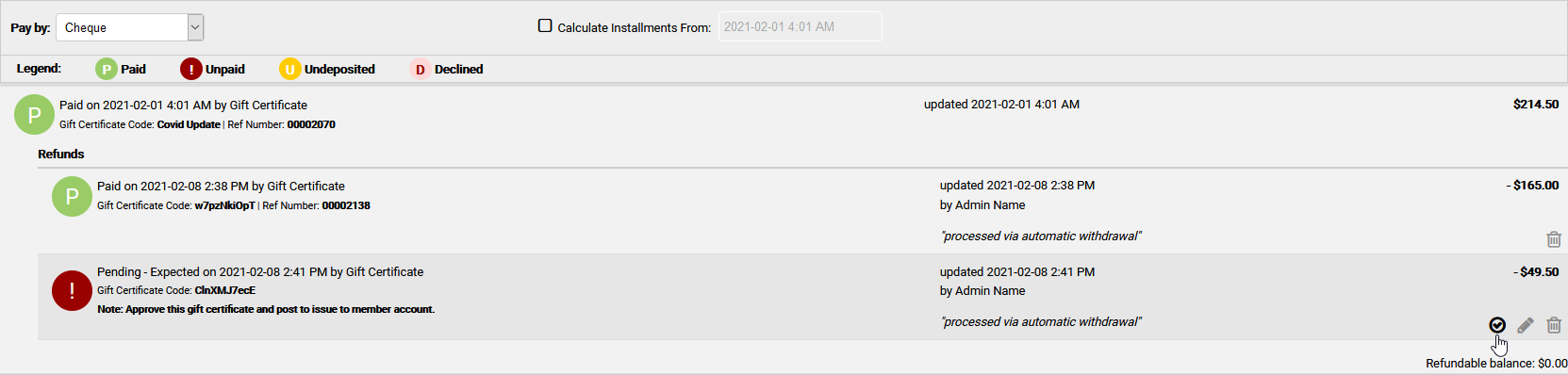
To approve these through the invoice please navigate to Accounting > Invoices and click Edit next to the invoice in question. From there, find the gift certificate refund listing in the Payments section of the invoice. Click Approve next to the refund to complete the issuing of the credit to the user.
Approve From The Gift Certificates Page
- Navigate to Accounting > Gift Certificates
- Locate the gift certificate in question
- Click Approve
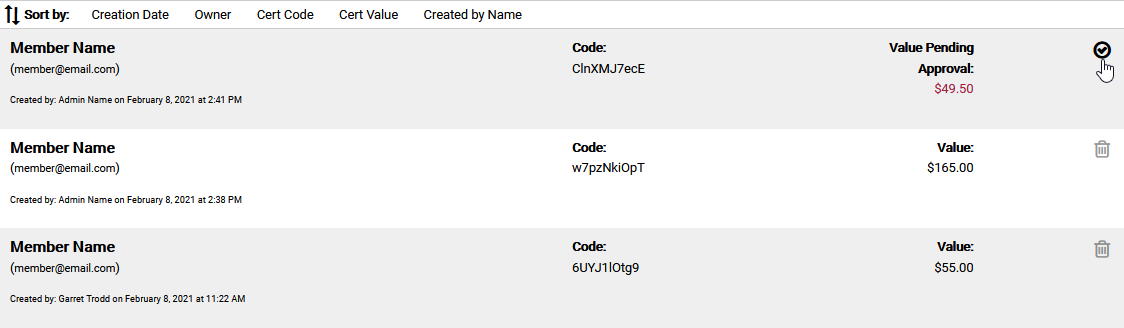
To approve these through the gift certificates please navigate to Accounting > Gift Certificates and click Approve next to the pending listing to complete the issuing of the credit to the user.
End Results
The end result of utilizing one of these withdrawal modes, whether as an admin or by allowing users to self-serve, will differ based on your "Default Refund Method" selected. Further, if you have enabled "Create Separate Withdrawal Credit Invoices" this will have an effect on the end outcome as well.
Always Create Gift Certificate
With this Refund Method selected the invoice in question will be updated with a refund. The refund will be for the program's determined refund value (based on your Withdrawal Mode) and will be issued back to the member as a gift certificate for future use.
If "Create Separate Withdrawal Credit Invoices" is enabled a new invoice will be created. On the new invoice a custom line item will be created for the negative value of your refund (based on your Withdrawal Mode). This negative balance will then be refund to the end user in the form of a gift certificate. On the original invoice the program in question will be withdrawn from, but no financial changes will occur. Note that this option cannot be used if pending payments are owed.
Auto-Process Refund Where Possible Before Creating Gift Certificate
With this Refund Method selected the invoice in question will be updated with a refund. The refund will utilize the original payment method if an online method (credit card/Interac) was used. This portion of the refund will return as much of the owed balance back to the member as possible. If this portion of the refund does not cover the entire owed balance then a secondary refund will be issued using gift certificates.
Similar to the "Always Create Gift Certificate" method, if "Create Separate Withdrawal Credit Invoices" is enabled a new invoice will be created. On the new invoice a custom line item will be created for the negative value of your refund (based on your Withdrawal Mode). This negative balance will then be refund to the end user in the form of the original payment method if an online method was used (credit card/Interac). This portion of the refund will return as much of the owed balance back to the member as possible. If this portion of the refund does not cover the entire owed balance then a secondary refund will be issued using gift certificates. On the original invoice the program in question will be withdrawn from, but no financial changes will occur. Note that this option cannot be used if pending payments are owed.
Create a Pending Gift Certificate Requiring Approval
With this Refund Method selected the invoice in question will be updated with a refund. The refund will be for the program's determined refund value (based on your Withdrawal Mode) and will be created using the gift certificate medium. However, before the end user can utilize this credit on account the refund must first be approved by an administrator. Please see Approving Gift Certificates for more information on this process.
If "Create Separate Withdrawal Credit Invoices" is enabled a new invoice will be created. On the new invoice a custom line item will be created for the negative value of your refund (based on your Withdrawal Mode). This negative balance will then be refund to the end user in the form of a pending gift certificate. Before the end user can utilize this credit on account the refund must first be approved by an administrator. Please see Approving Gift Certificates for more information on this process. On the original invoice the program in question will be withdrawn from, but no financial changes will occur. Note that this option cannot be used if pending payments are owed.