Index
Overview
With the re-opening of clubs and organizations there are new requirements and restrictions in place for everyone's safety. One of these requirements is a health checklist that must be completed. The following article details methods in which your organization can handle this specific requirement.
Self Assessment
Interested in a self assessment process for your users? The below option requires your admins/coaches to perform an assessment in person and may be what some clubs are looking for. However, you can also use Uplifter's latest policy features to have your participants perform a self assessment before they even enter the building.
Check out our updated Policies article for more information.
Evaluation
The first option for this checklist is to create an evaluation. Evaluations are a great way to handle this checklist if the handling thereof is being completed by your team. That is, an instructor/admin asks the questions of the participants and marks their answers. This option does not offer a "self-serve" variation, so members and participants would not be able to complete these evaluations themselves.
Creating Goals
- Navigate to Settings > Goals
- Create a goal for each question
To begin you will first need to create each question of the questionnaire as a goal within Uplifter. This is done via Settings > Goals. On this page you can click  Add Development Goal from the toolbar and add in your questions. Since the evaluations will use check boxes to indicate a "pass" you will likely want to invert the logic of the question. That is, the questionnaire may ask "Any difficulty breathing?" and having a check mark next to that would be confusing. So inverting the logic would result in a question like "No difficulty breathing?". Then, a check mark would seem more appropriate.
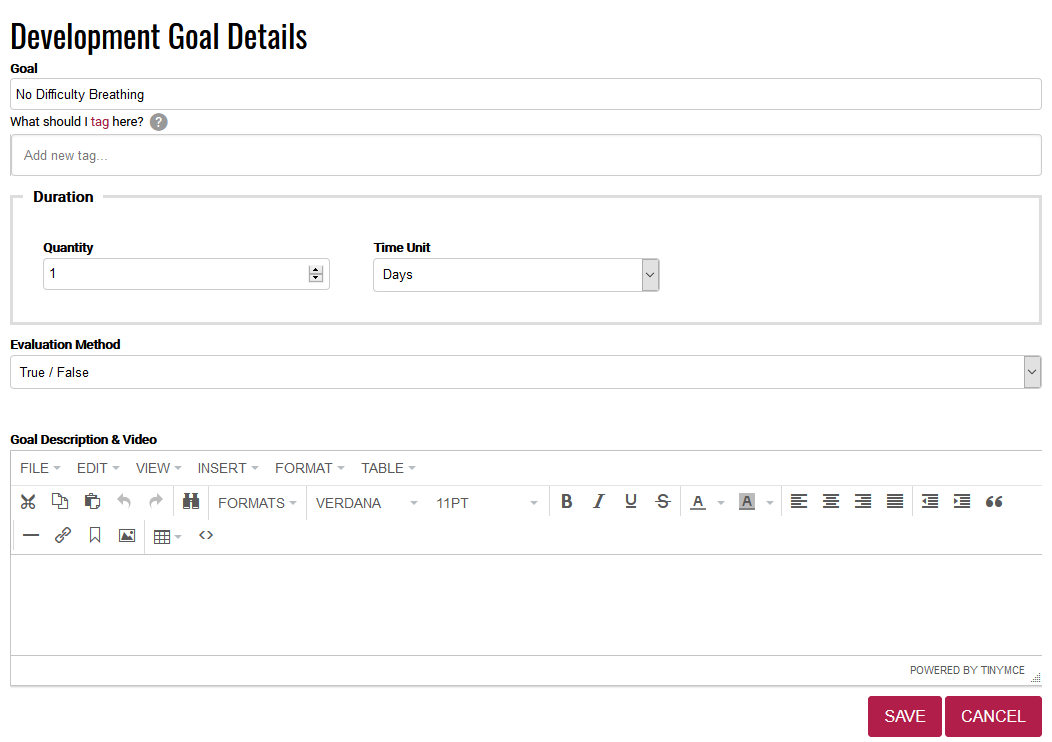
Each goal would have a goal name, no tags, a Duration of 1 days, use the True/False method, and have to description. Please be sure you are using your organization's approved checklist. Please see our the Goals section of our Evaluations article for more information on creating goals.
Creating The Evaluation
- Navigate to Settings > Evaluations
- Create a new evaluation
- Tag all of your categories
- Add a Goal Group
- Add your questionnaire goals
- Click Save
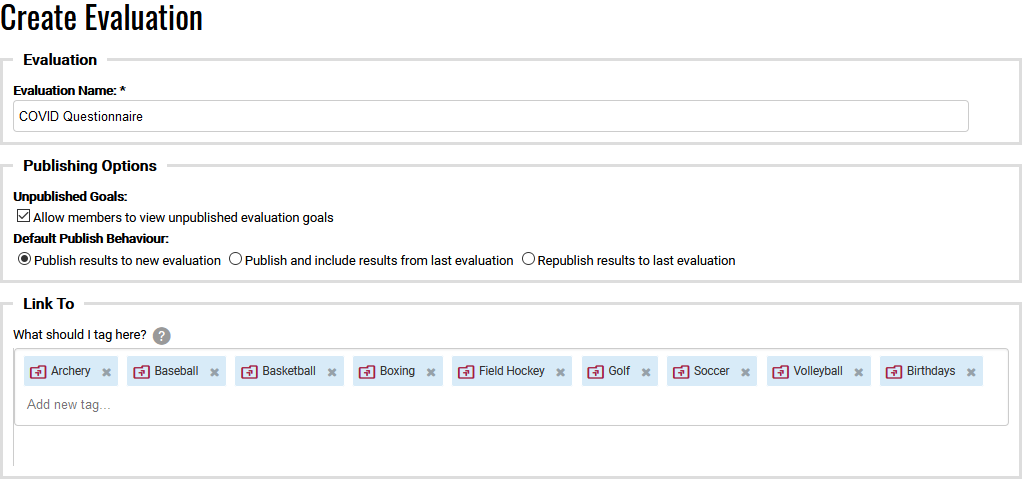
To create your evaluation please navigate to Settings > Evaluations. On this page select Add Evaluation from the toolbar. Name your evaluation as desired and set the Publishing options to Allow members to view unpublished evaluation goals and Publish results to new evaluation. In the Link To section be sure to tag all categories in your system (found via Settings > Categories). You do not need to tag the category levels within.
Next, click Add A Goal Group in the Evaluation Goal Groups section. Set the name of the goal group (likely the same as the evaluation) and click Save. Then, for each question you created in your Goals section, click the Add icon, find, and add the goal. Be sure to mark that the goal is Track Passed Only.
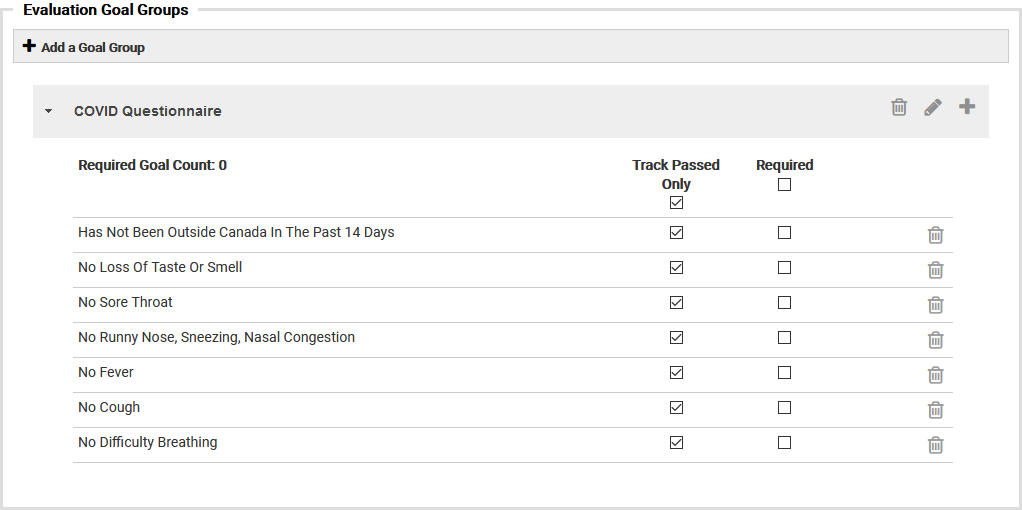
Be sure to click Save to keep the evaluation you've created. Note that you can drag and drop the order of your questions after you have saved for the first time. Please be sure you are using your organization's approved checklist. Please see our the Evaluations section of our Evaluations article for more information on creating evaluations.
Performing A COVID Checklist Evaluation
- Navigate to the Dashboard
- Click the event listing from the calendar
- Select Evaluation
- Take attendance
- Perform the COVID Questionnaire evaluation.
Now that the evaluation is in your system you can use it by navigating to the Dashboard of your system. Here, use the calendar to find and select the event in question. Choose the Evaluations option from the menu. When the page loads the evaluations tool you will first need to take attendance. Once completed you will be brought to the evaluations tab. Here, be sure to select the COVID Questionnaire evaluations from the Current Evaluation drop down (if not selected by default).
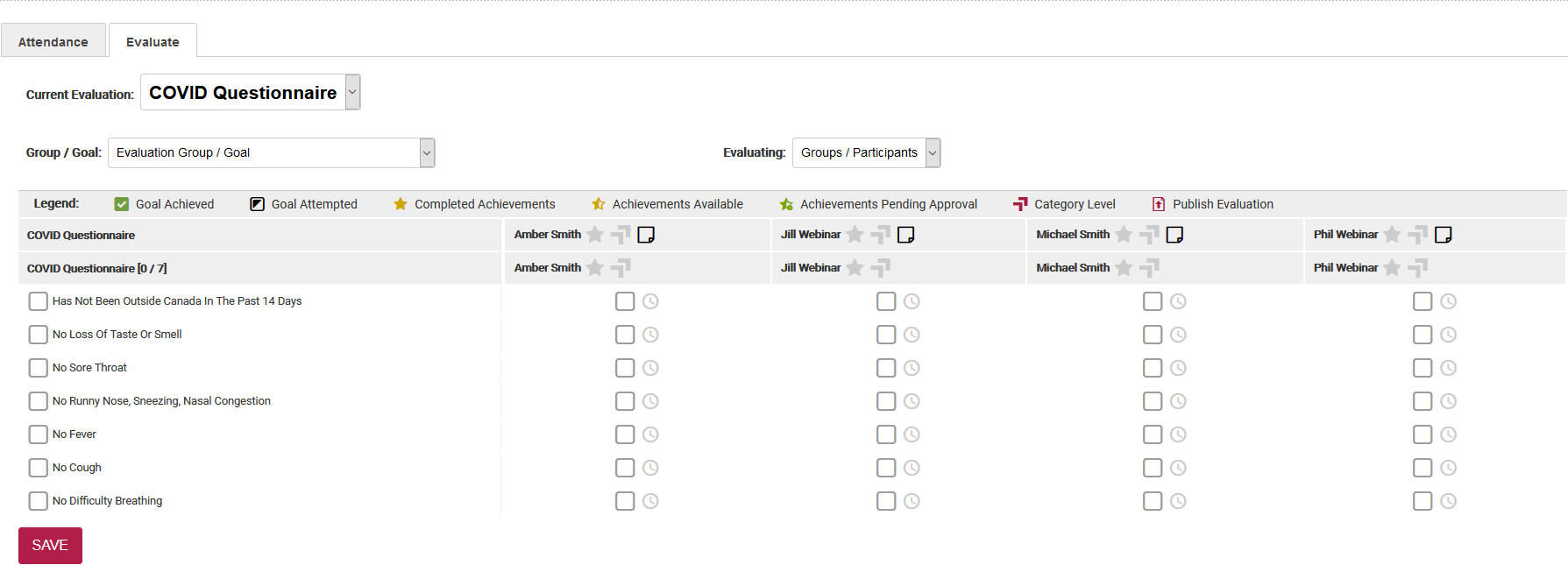
Update the evaluation for each participant present and click Save to complete the process. Please see the Evaluating section of our Evaluations article for more information on performing evaluations.